A guide to uploading lists in HubSpot Before You Begin Please ensure your file is saved in one of...
This is a step-by-step guide to create a HubSpot RSVP
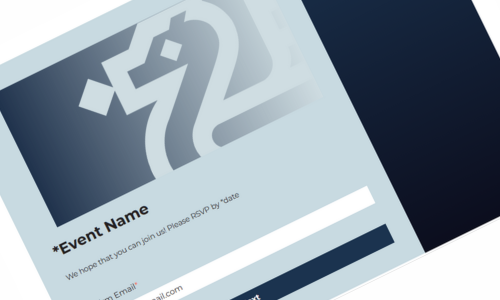
- In the main HubSpot Dashboard, Hover over the Marketing tab and select Forms. Duplicate the RSVP Form Template 2025 form, rename it RSVP ‘Your Event Name’ and save it. Click on the form (Step 1) and update the details to match your event. Review all changes, and update the form to publish it. You can now exit the Form.
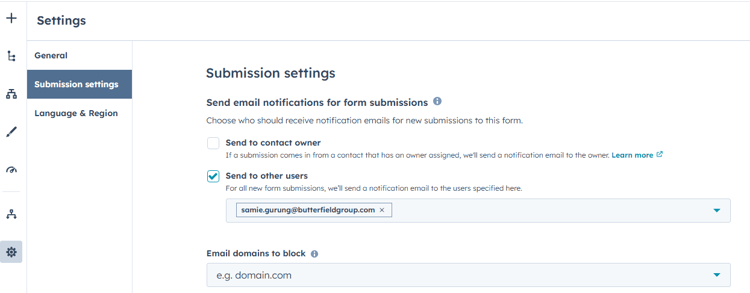
Please add yourself, me, and any other team members who should be notified about responses in the Form Settings notifications.
2. In the main HubSpot Dashboard, navigate to Landing pages under the Content Hub. Duplicate the RSVP Invite Page Template 2025 landing page and rename it to match your event.
-
- Click on the form and, in the left panel, change it to the form you duplicated in Step 1. You can select it from the dropdown under Select a form. Tip: If you don’t see the editor panel, click directly on the form and it will appear.
- Click on the form and, in the left panel, change it to the form you duplicated in Step 1. You can select it from the dropdown under Select a form. Tip: If you don’t see the editor panel, click directly on the form and it will appear.
Click Publish to make your landing page live.
Important: Always click Publish after making any edits.
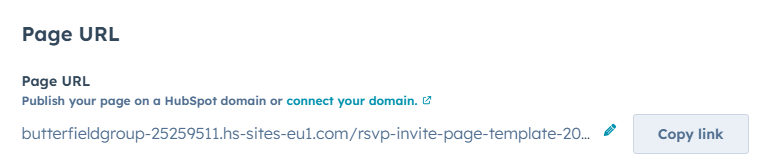
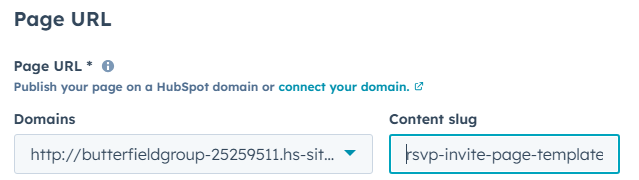
One of the most important step: In the Page settings, update the Page URL and slug to reflect your event name. You can just copy and paste the Page title in the slug by clicking on the pencil icon to edit. Hit 'Copy link' to copy the URL and head over to your draft email.
-
- In your email, drag/ add a Button element to the desired location.
- Click on the button to open the editor tool, paste the link for your landing page you created in Step 2.
3. Optional-Add to Calendar links: Use Add Cal to create your event links. You will require an invite to log in and create an account to access this feature. Please reach out to me so I can add you to the Add Cal Team.
Enter your event details, click 'Create Event', and copy the links for Google Calendar and iCalendar. Change the URL in The HubSpot form to your Calendar link.
*Please don't forget to delete the Calendar links from the landing page if you don't require them.
4. Once your email is ready, duplicate the list RSVP Response List and edit the filters to include the form you created in Step 1.
5. Save the list as an Active list. Active lists update in real time, so as soon as clients begin RSVPing, their responses will appear automatically.
Tip: If your form contains multiple fields—such as Food Allergies or Plus One, edit the column view to include those fields for easier reference.
Final checks:
Always send test emails to your team and me before the official send. Confirm that:
- All steps are covered
- Links and buttons work correctly
- The form is capturing the correct information
If you have any questions or changes regarding this guide, message me on Teams! 😊